Gemini Old Photo Restoration Prompts: 22 Proven Ways to Fix Old Family Photos (2026)
These Gemini old photo restoration prompts help you repair scratched, torn, faded and yellowed family photos in a few minutes. Upload a scan or a clear phone photo of the print to Gemini, copy a prompt and paste it. Every prompt tells Gemini to fix the damage while keeping each face exactly as it was, because in a family photo, likeness matters more than anything.
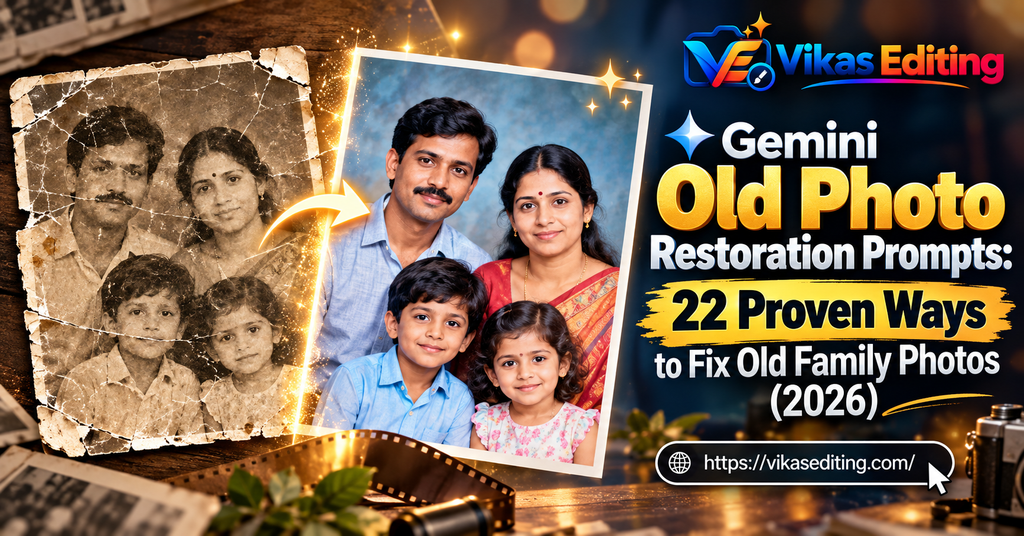
Almost every family has a box of old photos: grandparents’ wedding pictures, a faded school photo, a small passport-size print of someone who is no longer with us. These photos fade, crack and stain over time. Professional restoration can be slow and costly. AI tools like Gemini now make a careful first restoration possible from your phone.
What Are Gemini Old Photo Restoration Prompts?
A Gemini old photo restoration prompt is a written instruction you send to Google Gemini with an old photo. It tells Gemini which damage to fix, like scratches, tears, stains or faded colour, and what must not change, like faces, clothes and the background. The goal is the same photo, only healthier, not a new picture.
Restoration is different from other AI edits. With a festive photo, you want the AI to be creative. With an old family photo, you want it to be careful. That is why every prompt below says “do not add, remove or redraw” and “do not invent new features”. Those lines are the most important part.
An Honest Word About AI Restoration
AI can make a damaged photo look much better, but it can also guess. When part of a face is missing or very blurry, the AI may fill it with details that were never there. Colourisation is also a guess, because a black and white photo does not record real colours. Treat AI results as a beautiful restored version, and keep your original scan safe as the true record.
22 Gemini Old Photo Restoration Prompts to Copy
These Gemini old photo restoration prompts start with gentle clean-ups and move to bigger repairs. Start with the gentlest prompt that solves your problem. Tap Copy Prompt, paste it with your photo, and only move to stronger prompts if you need them.
Basic Scratch and Dust Clean-Up
Original ratio · CleanRestore the uploaded old photo. Remove dust spots, small scratches and white specks across the whole image. Keep every face, expression, hairstyle, piece of clothing and background detail exactly as it is. Do not add, remove or redraw anything. Keep the original colours or black and white tone, the original grain and the original framing. The result should look like the same photo, only cleaner.
Best for: The safest first step for any old photo.
Faded Colour Recovery
Original ratio · ColourRestore the faded colours in the uploaded old colour photo. Bring back natural skin tones, the true colours of the clothes and a balanced sky or background, without making anything look oversaturated or modern. Keep every face, feature and object exactly the same. Remove the washed-out look and restore gentle contrast. Keep the original film character and framing.
Best for: 1980s and 1990s prints that have gone pale.
Colourise a Black and White Photo
Original ratio · ColouriseColourise the uploaded black and white photo with natural, realistic colours. Use believable Indian skin tones, soft period-appropriate clothing colours and muted background colours. Keep every face, expression, feature, hairstyle and piece of jewellery exactly the same. Do not add modern objects or change any clothing style. Keep the original lighting, shadows and grain. The colours should look like a real photo of that time.
Best for: Seeing grandparents in colour for the first time.
Repair a Torn Photo
Original ratio · RepairRepair the tear running across the uploaded old photo. Join the torn pieces seamlessly so the tear line disappears completely. Rebuild only the small missing areas along the tear, matching the surrounding texture, tone and grain. Keep all faces, features and clothing exactly the same. If the tear crosses a face, rebuild it only from what is visible and do not invent new features.
Best for: Photos ripped in half or across a corner.
Water Damage and Stain Removal
Original ratio · RepairRestore the uploaded water-damaged photo. Remove the water stains, tide marks, bubbling and discoloured patches. Recover the original tones underneath as naturally as possible. Keep every face, expression and detail exactly the same, and do not redraw areas that are still clearly visible. Keep the original black and white or colour tone and film grain.
Best for: Photos damaged by floods, leaks or damp albums.
Gently Sharpen a Soft Old Face
Original ratio · DetailGently improve the clarity of the uploaded old photo. Make the faces slightly clearer and reduce blur, but keep every facial feature, eye shape, nose, lips, wrinkles and expression exactly as in the original. Do not beautify, smooth the skin, change age or make anyone look younger. Keep natural grain. If a detail cannot be seen, leave it soft rather than inventing it.
Best for: Slightly blurry portraits of loved ones.
Restore an Old Wedding Photo
Original ratio · WeddingRestore the uploaded old wedding photo. Remove scratches, dust, creases and fading. Recover the details of the bridal saree or lehenga, the groom’s sehra or safa, the garlands and the jewellery, only where they are already visible. Keep both faces, expressions and the whole scene exactly the same. Keep the original colours or black and white tone and the original framing.
Best for: Parents’ or grandparents’ wedding day photos.
Restore a Large Family Group Photo
Original ratio · GroupRestore the uploaded old family group photo. Clean up scratches, dust, stains and fading across the whole image. Keep every person exactly as they are: same faces, ages, expressions, clothes and positions. Do not add, remove or merge anyone. Make small faces at the back slightly clearer without changing their features. Keep the original tone and framing.
Best for: Joint family photos with many small faces.
Remove Yellow and Sepia Cast
Original ratio · ColourRemove the strong yellow and brown colour cast from the uploaded old photo. Restore neutral whites, natural greys and balanced skin tones. Keep every face, feature, object and texture exactly the same. Keep a very light, warm vintage feel so it still looks like an old photo, not a modern one. Do not change the framing or add anything new.
Best for: Prints that have turned yellow with age.
Fix Creases and Fold Lines
Original ratio · RepairRemove the fold lines and creases in the uploaded old photo, including the white cracked lines where the paper was bent. Fill them in so they blend with the surrounding area. Keep every face, feature and detail exactly as it is. Do not redraw anything that is not damaged. Keep the original tone, contrast and grain.
Best for: Photos kept folded in wallets or letters.
Restore a Small Passport-Size Photo
Original ratio · PortraitRestore the uploaded small old passport-size photo. Remove the scratches, stains and fading, and make the face slightly clearer. Keep the face, expression, hairstyle, clothing and plain background exactly the same. Do not change the age, beautify the face or add colour unless the original was in colour. Keep the original framing and the official photo style.
Best for: The only photo left of a grandparent.
Upscale a Tiny Old Print
Original ratio · UpscaleEnlarge and clean the uploaded small old print so it can be printed bigger. Improve sharpness and reduce noise carefully. Keep every face, feature, hairstyle and background element exactly the same. Do not invent new details, add texture that was not there or make the photo look like a modern digital image. Keep a natural film grain.
Best for: Contact prints and tiny album photos.
Remove Glare From a Photo of a Print
Original ratio · CleanThe uploaded image is a phone photo of an old printed photograph. Remove the shiny glare, light reflections and glossy patches caused by the phone camera. Recover the tones hidden under the glare as naturally as possible. Keep every face and detail exactly the same. Keep the original photo’s colours or black and white tone.
Best for: Photos you snapped from an album page.
Straighten a Tilted Photo of a Print
Original ratio · FixThe uploaded image is a phone photo of an old print taken at an angle. Straighten it so the photo looks flat and square, as if it was scanned. Remove the album page, table or background around the edges. Keep every face and detail inside the photo exactly the same and do not stretch the people. Then clean light dust and scratches.
Best for: Crooked phone captures of old photos.
Restore an Old Studio Portrait
Original ratio · PortraitRestore the uploaded old studio portrait with a painted backdrop. Clean scratches, spots and fading from the person and the painted background, including the curtain, pillar or garden scene. Keep the face, pose, clothing and backdrop design exactly the same. Keep the soft studio lighting and the original tone. Do not modernise anything.
Best for: Classic studio photos from the 1950s to 1980s.
Keep Black and White but Make It Crisp
Original ratio · B&WRestore the uploaded black and white photo without adding colour. Remove scratches, dust and stains, and improve contrast so the blacks are deep and the whites are clean. Keep every face, feature and detail exactly the same. Keep a fine, natural film grain. The result should look like a freshly printed black and white photo from the same negative.
Best for: People who love the original black and white look.
Restore an Old Instant Photo
Original ratio · InstantRestore the uploaded old instant photo. Correct the colour fading and the green or blue colour shift typical of old instant prints. Remove spots and small scratches. Keep every face and detail exactly the same. Keep the white border and the soft, dreamy look of instant film. Do not make it look like a modern digital photo.
Best for: Faded instant camera prints.
Restore an Old House or Village Photo
Original ratio · PlaceRestore the uploaded old photo of a house, street or village. Remove scratches, dust, stains and fading. Recover details in the walls, doors, trees and sky only where they are already visible. Keep every building, person and object exactly as it is, and do not add anything new. Keep the original tone and framing.
Best for: Ancestral homes and old family places.
Fix the Magenta Cast in 1970s Prints
Original ratio · ColourCorrect the strong pink and magenta colour cast in the uploaded 1970s colour photo. Restore natural skin tones, green trees and a believable sky. Keep every face, feature and object exactly the same. Keep a gentle vintage feel with soft contrast and natural grain. Do not oversaturate or make it look modern.
Best for: Colour prints that turned pink over time.
Fill a Missing Corner
Original ratio · RepairThe uploaded old photo has a missing or torn-off corner. Rebuild only the missing corner so it blends naturally with the background around it, matching texture, tone and grain. Do not add any new person, face or object in that area. Keep everything else in the photo exactly the same.
Best for: Photos with damaged edges.
Remove Pen Marks but Keep the Date Stamp
Original ratio · CleanRemove the pen scribbles and ink marks drawn across the uploaded old photo. Recover the image underneath as naturally as possible. Keep the printed date stamp in the corner exactly as it is. Keep every face, feature and detail the same, and do not redraw areas that are not marked.
Best for: Photos a child once drew on.
Final Print-Ready Version
Original ratio · PrintPrepare the uploaded restored photo for printing and framing. Make a final gentle pass: balance brightness and contrast, remove any leftover tiny spots, and keep colours natural. Keep every face and detail exactly the same. Do not add effects, text, borders or filters. The result should look like a clean, high-quality print of the original photo.
Best for: The last step before printing a gift frame.
How to Use Gemini Old Photo Restoration Prompts
Good restoration starts before you open Gemini. The better your copy of the old photo, the less the AI has to guess.
Step 1: Get a Good Copy of the Old Photo
A flatbed scanner gives the best copy. If you do not have one, use your phone: place the photo flat on a table near a window, turn off the flash, hold the phone straight above the photo and fill the frame. Avoid shadows from your hand or phone.
Step 2: Keep the Original Safe
Save the untouched scan in a separate folder before you edit anything. This is your true copy. If the AI changes a face, you can always go back to it.
Step 3: Upload to Gemini and Paste a Prompt
Open Gemini, tap the plus (+) button, upload the scan and paste one prompt. Start with the Basic Scratch and Dust Clean-Up prompt for most photos.
Step 4: Restore in Stages
Do one job at a time. First clean scratches and dust. Then fix tears or creases. Then correct colour. Last, colourise if you want. Doing everything in one prompt gives the AI too much freedom and faces are more likely to change.
Step 5: Compare Faces With the Original
Put the original and the restored version side by side and zoom in on each face. Check eyes, nose, mouth, ears and hairline. Ask an older family member if the person still looks like themselves. If not, go back one step.
Which Prompt Should You Use?
Match the damage to the right prompt so you only use as much AI as you need.
| Your photo problem | Start with this prompt | Then try |
|---|---|---|
| Dust, spots, light scratches | Basic Scratch and Dust Clean-Up | Final Print-Ready Version |
| Colours look pale or washed out | Faded Colour Recovery | Remove Yellow and Sepia Cast |
| Turned yellow or brown | Remove Yellow and Sepia Cast | Faded Colour Recovery |
| Turned pink or magenta | Fix the Magenta Cast in 1970s Prints | Final Print-Ready Version |
| Torn or ripped | Repair a Torn Photo | Fill a Missing Corner |
| Folded or cracked | Fix Creases and Fold Lines | Basic Scratch and Dust Clean-Up |
| Water stains | Water Damage and Stain Removal | Faded Colour Recovery |
| Black and white, want colour | Keep Black and White but Make It Crisp first | Colourise a Black and White Photo |
| Taken with a phone, shiny or tilted | Straighten a Tilted Photo of a Print | Remove Glare From a Photo of a Print |
Tips for Safe, Natural Photo Restoration
Never Ask the AI to Make Someone Look Better
Words like “beautiful”, “flawless skin” or “younger” tell the AI to change the person. Wrinkles, marks and the exact shape of a smile are part of who that person was. The prompts here say “do not beautify” for this reason.
Keep a Little Grain
Old photos have natural film grain. Removing all of it makes the photo look plastic and fake. Asking to “keep natural film grain” keeps the restored photo feeling authentic.
Be Careful With Colourisation
If you know the real colours, add them. For example: “grandmother’s saree was dark green with a gold border”. Family memory makes colourisation more accurate than the AI’s guess. If nobody remembers, keep colours soft and muted.
Restore Group Photos Face by Face
In large family photos, small faces at the back often come out wrong. If one face changes, ask Gemini to “restore only the face of the man at the back left, using only what is visible”. Our Gemini family photo editing prompts explain more ways to protect every person in a group photo.
Common Restoration Problems and Fixes
| Problem | Why it happens | How to fix it |
|---|---|---|
| A face looks like a different person | Too much damage, or the AI filled in guesses | Go back to a gentler prompt and fix that face alone with “only what is visible” |
| Skin looks smooth and plastic | The AI removed grain and texture | Add “keep natural skin texture and film grain, do not smooth” |
| Colours look too bright and modern | Colourisation was too strong | Add “muted, period-appropriate colours, not oversaturated” |
| New objects appeared | The AI filled damaged areas creatively | Add “do not add any new objects or people” |
| The photo was cropped or stretched | The AI changed the frame | Add “keep the original framing and aspect ratio” |
| Date stamp or writing disappeared | The AI treated it as damage | Say “keep the printed date stamp exactly as it is” |
For more on keeping faces unchanged during any AI edit, see our guide on Gemini photo editing without changing your face.
Gemini or ChatGPT for Restoring Old Photos?
Gemini is usually the better choice for restoration because it tends to keep faces and structure closer to the original photo. ChatGPT can also restore photos, but test the same photo in both and compare faces closely. For very damaged photos, a professional restorer is still the safest option when the photo matters a lot.
Google’s official Nano Banana prompting guide recommends being explicit about what should stay the same when you edit an image, which is exactly how these restoration prompts are written. For creative edits beyond restoration, our main collection of Gemini AI photo editing prompts is a good next stop.
Frequently Asked Questions
Can Gemini restore old photos?
Yes. Gemini can remove scratches, repair tears, fix faded colours and colourise black and white photos. Upload a clear scan, paste a restoration prompt and compare the result with the original, especially the faces.
Are these Gemini old photo restoration prompts free?
Yes, all 22 prompts are free to copy. Gemini’s free plan includes a daily limit on image edits, which is usually enough to restore a few photos each day.
Will AI change my grandparents’ faces?
It can if the photo is very damaged or the prompt is too strong. These prompts ask Gemini not to redraw faces or invent features. Restore in small stages and compare faces with the original after each step.
How do I colourise a black and white photo with Gemini?
First clean the photo with the Keep Black and White but Make It Crisp prompt, then use the Colourise prompt. If family members remember real colours, add them to the prompt for a more accurate result.
Should I scan the photo or take a phone picture?
A scanner gives the best quality. If you use a phone, place the photo flat in soft daylight, turn off the flash and hold the phone straight above it. Then use the Straighten and Glare prompts if needed.
Can I print the restored photo?
Yes. Run the Final Print-Ready Version prompt and download the full-size image. For large prints, start from a high-quality scan so the AI has enough detail to work with.
Final Thoughts
These Gemini old photo restoration prompts give you 22 careful ways to bring family memories back to life, from a simple dust clean-up to colourising a grandparent’s wedding photo. Keep the original safe, restore in small steps and check every face. A restored photo makes a meaningful gift, especially when the whole family gathers for festivals.