
Editing by Vikas: Free AI Photo Prompts, CapCut Templates and Birthday VN Code Guides
Welcome to Editing by Vikas. This is a free place to learn simple photo and video editing on your phone. You’ll find AI photo editing prompts for Gemini and ChatGPT, CapCut template guides, easy filter ideas and step-by-step help with birthday VN codes. Everything is written in plain words, so you can follow along even if you have never edited anything before.
You don’t need a laptop. You don’t need a paid app. You just need your phone, a clear photo and a few minutes.
What Is Editing by Vikas?
Editing by Vikas is a free editing library made for everyday people. The idea is simple: good edits should not be hard, and they should not cost money. Every guide here explains what to do, why it works and what to do when something goes wrong.
Most people who come here want one of three things: a nicer photo for Instagram or WhatsApp, a quick video for a birthday or festival, or a trendy viral edit they saw online. This site covers all three.
-
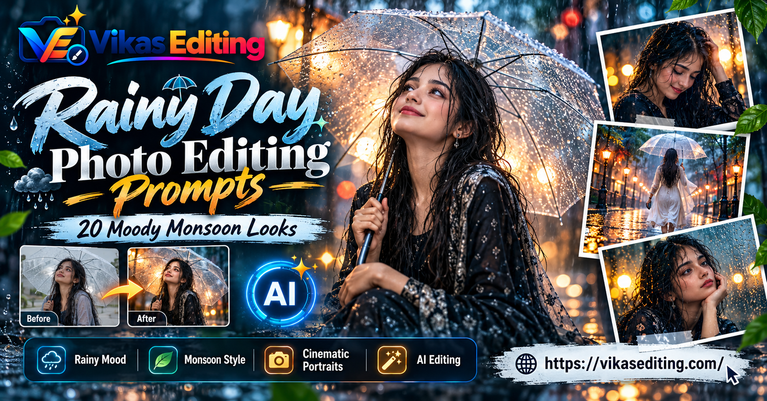
Rainy Day Photo Editing Prompts: 20 Moody Monsoon Looks
Twenty prompts that add believable rain, wet streets, umbrellas and monsoon colour to your photos, plus an explanation of what makes rain look real and how to fix fake-looking results.
-
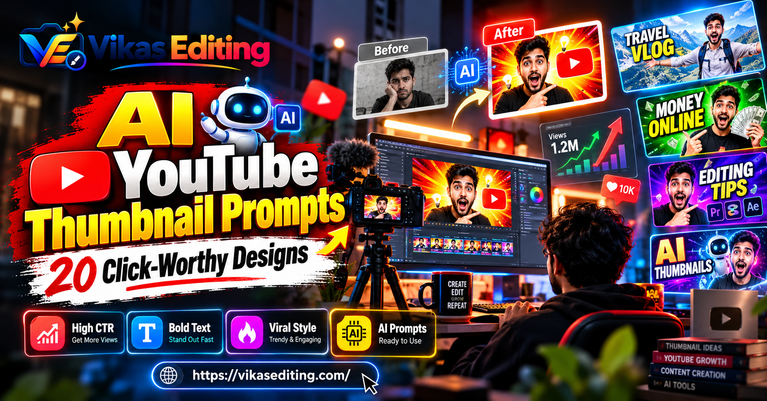
AI YouTube Thumbnail Prompts: 20 Click-Worthy Designs
Twenty AI YouTube thumbnail prompts for popular niches, plus YouTube’s official thumbnail specs, layout principles, text tips and fixes for common AI design mistakes.
-
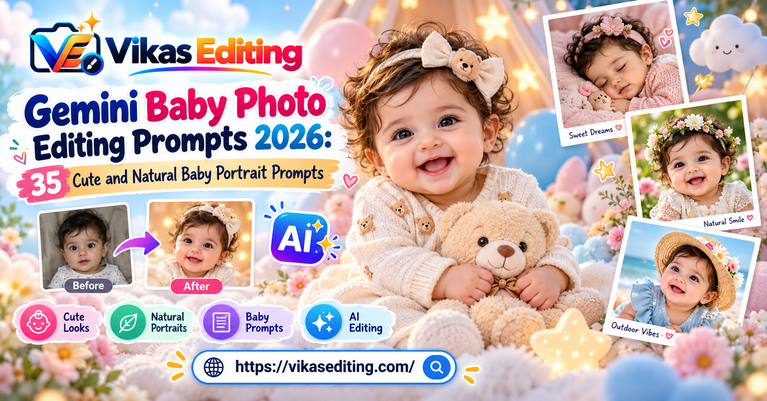
Gemini Baby Photo Editing Prompts 2026: 35 Cute and Natural Baby Portrait Prompts
Copy 35 Gemini baby photo editing prompts for newborn, monthly milestone, family, studio, sleeping, birthday and natural baby portrait edits.
-
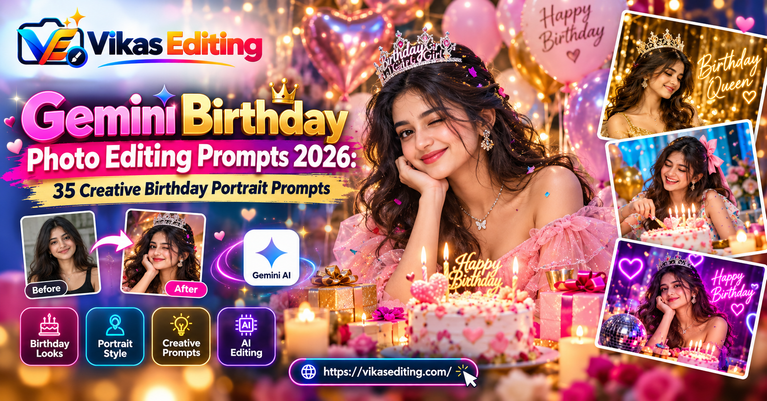
Gemini Birthday Photo Editing Prompts 2026: 35 Creative Birthday Portrait Prompts
Copy 35 Gemini birthday photo editing prompts for cake, balloons, studio, outdoor, kids, adults, luxury and cinematic birthday portrait edits.
-
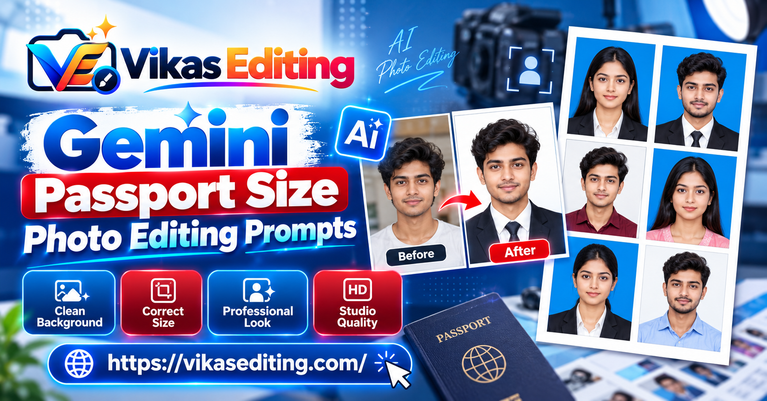
Gemini Passport Size Photo Editing Prompts 2026: 35 Clean ID Photo Prompts
Copy 35 Gemini passport size photo editing prompts for clean white or light backgrounds, formal ID-style portraits, balanced lighting and natural face preservation.
-
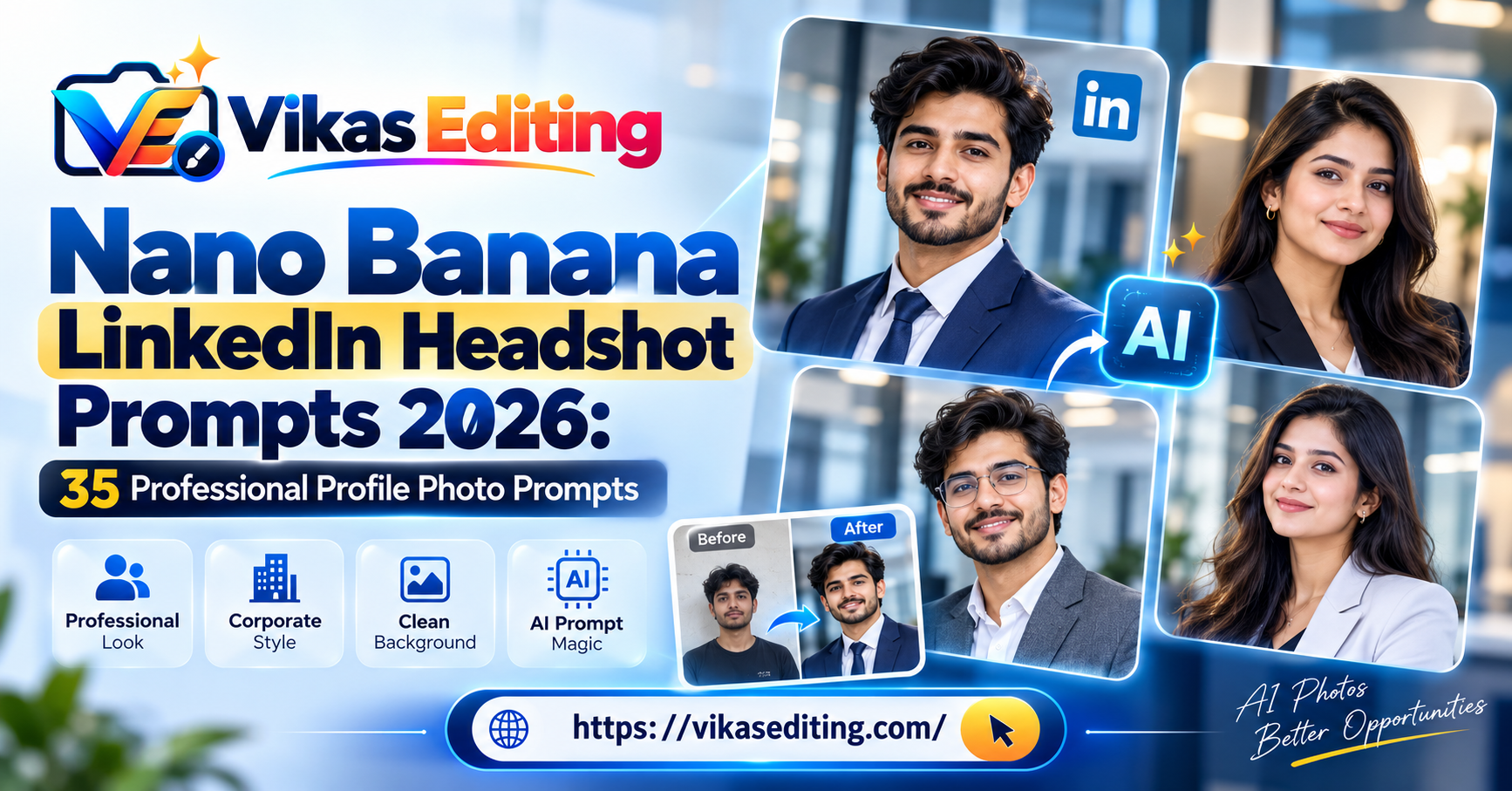
Nano Banana LinkedIn Headshot Prompts 2026: 35 Professional Profile Photo Prompts
Use 35 Nano Banana LinkedIn headshot prompts for professional corporate, startup, executive, tech and creative profile photos while preserving your real face.
-
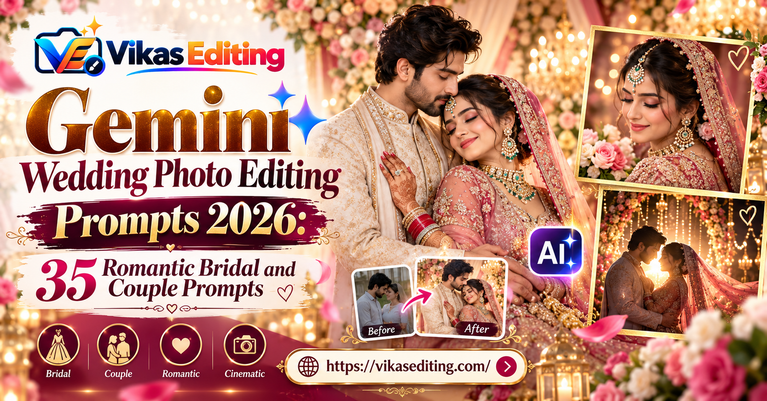
Gemini Wedding Photo Editing Prompts 2026: 35 Romantic Bridal and Couple Prompts
Copy 35 Gemini wedding photo editing prompts for bride, groom, couple, mehndi, nikah, reception, pre-wedding and cinematic wedding photo edits.
-
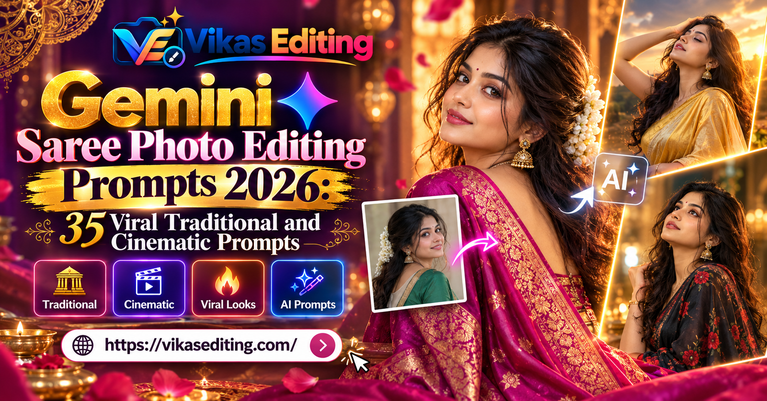
Gemini Saree Photo Editing Prompts 2026: 35 Viral Traditional and Cinematic Prompts
Copy 35 Gemini saree photo editing prompts for Kanjivaram, Banarasi, chiffon, wedding, festive and cinematic saree portraits with natural face preservation.
-
Gemini Old Photo Restoration Prompts 2026: 35 Repair, Colorize and Enhance Prompts
Use 35 Gemini old photo restoration prompts to repair scratches, restore faded colors, colorize black-and-white photos, fix damage and enhance family memories.
What You Will Find on Editing by Vikas
| What it is | What it does | Best for |
| AI photo prompts | Change a background, outfit, hairstyle or style with Gemini or ChatGPT | Profile photos, portraits, couple photos |
| CapCut templates | Ready-made video edits where you just add your photos | Reels, Shorts, status videos |
| Filters and colour looks | Give your photos and videos one clean, matching style | A good-looking Instagram feed |
| Birthday VN code guides | Step-by-step help to make a birthday video in VN Video Editor | Birthday wishes for friends and family |
| Viral edit guides | Explain popular trends and how to make them yourself | Trend posts and festival edits |
Who This Site Is For
- Beginners who want a good result without learning editing first.
- Students and young creators who post Reels and Stories.
- Small sellers who need cleaner product photos.
- Anyone who wants to make a birthday or festival video for someone they love.
Prompt by Vikas Editing: Simple AI Photo Editing Prompts
A prompt by Vikas Editing is a ready-to-use instruction for an AI tool like Google Gemini or ChatGPT. You upload your photo, paste the prompt, and the AI edits your photo for you. Each prompt is written to change only what you want and keep your face looking like you.
What Is an AI Photo Editing Prompt?
An AI photo editing prompt is a short message you send to an AI tool together with your photo. It tells the AI two things:
- What to change — for example the background, your clothes or the lighting.
- What to keep — for example your face, your smile and your pose.
Most bad edits happen because the second part is missing. If you don’t tell the AI to keep your face, it may change it.
How to Use a Prompt by Vikas Editing
Follow these five steps. They work in both Gemini and ChatGPT.
Step 1: Choose a Clear Photo
Pick a sharp photo taken in good light, with your face fully visible. Use the original photo from your gallery. Photos sent through WhatsApp lose quality, and the AI has less detail to work with.
Quick Tip
Front-facing photos taken in daylight give the best results. Avoid dark rooms, heavy filters and sunglasses.
Step 2: Open Gemini or ChatGPT
Open the Gemini app or the ChatGPT app on your phone. You can also use them in any mobile browser. Sign in with your account.
Step 3: Upload Your Photo
Tap the + button, choose your photo from the gallery and wait for it to upload.
Step 4: Paste the Prompt
Copy the prompt from this site and paste it into the message box under your photo. Change only the small details if you want, like the colour of an outfit or the place in the background. Keep the line that says to keep your face the same.
Step 5: Try Two or Three Times
AI tools give a slightly different result each time. Send the prompt two or three times and keep the best one. Then download the full-size image instead of taking a screenshot.
Parts of a Good Prompt
| Part | What to write | Example |
| Source | Tell the AI to edit your photo | “Edit the uploaded photo.” |
| One change | Say the main thing to change | “Change the background to a beach at sunset.” |
| What stays | Protect your face and pose | “Keep my face, smile and skin tone exactly the same.” |
| Light | Describe the light so it looks real | “Warm sunset light from behind, soft shadow on the sand.” |
| Finish | Size and natural look | “Natural skin texture, 4:5 vertical.” |
Sample Prompts You Can Try Today
Background Change Prompt
Edit the uploaded photo. Change the background to a clean photo studio with a soft grey wall. Keep my face, expression, hair and clothes exactly the same. Soft light from the left. Natural skin texture. 4:5 vertical.
Outfit Change Prompt
Edit the uploaded photo. Change my clothes to a navy blue suit with a white shirt. Keep my face, pose, hands and background exactly the same. The suit should fit my shoulders and body naturally.
Keep My Face the Same (Add This Line to Any Prompt)
Keep the face, facial features, expression, skin tone and age exactly the same as the uploaded photo. Do not change the face.
Gemini or ChatGPT: Which One Should You Use?
| What you want | Better choice | Why |
| Keep your face the same | Gemini | Usually keeps faces closer to the original |
| Add a name or text to the photo | ChatGPT | Writes clearer text on images |
| Change the background | Gemini | Cleaner edges around hair |
| Photo with two or more people | Gemini | Keeps each face separate |
| Product photo | Either | Both handle objects well |
Template by Vikas Editing: Easy CapCut Video Templates
A template by Vikas Editing is a ready-made video edit. The music, cuts, transitions and text are already set. You only add your own photos or clips, and the video is ready to share. It’s the fastest way to make a Reel, a Short or a WhatsApp status without learning video editing.
What Is a CapCut Template?
CapCut is a free video editing app. A CapCut template is a saved edit that anyone can open and reuse. When you open a template, CapCut shows empty slots. You fill those slots with your photos or videos, and the app does the rest — it matches your clips to the beat and adds the effects automatically.
How to Use a Template by Vikas Video CapCut
Step 1: Install or Update CapCut
Download CapCut from the Play Store or App Store. If you already have it, update it. Old versions often fail to open new templates.
Step 2: Open the Template Link
Tap the template link on this page. It opens inside CapCut.
[Add template link here]
Step 3: Tap “Use Template”
CapCut will show you how many photos or clips the template needs. Try to use exactly that number, because too few or too many can break the timing.
Step 4: Add Your Photos or Clips
Pick your photos from the gallery. Choose sharp, bright pictures. A template can’t fix a blurry photo.
Step 5: Edit the Text
If the template has text, tap it and type your own words, like a name, a date or a short message.
Step 6: Export and Share
Tap Export, choose HD quality, and save the video. Now you can post it on Instagram, YouTube Shorts or WhatsApp.
Quick Tip
If the music disappears after you post on Instagram, the song may be blocked for copyright reasons. Add the same song again from Instagram’s own music library before posting.
Popular Template by Vikas Styles
| Template style | What it looks like | Best photos to use |
| Slow motion | Smooth, dreamy movement with soft music | Walking, hair flips, nature clips |
| Beat sync | Cuts change exactly on the beat of the song | Many short photos or clips |
| Before and after | Shows a change, like a glow-up or a room makeover | Two matching photos |
| Couple | Soft colours and romantic music | Couple photos and selfies |
| Festival | Bright colours, lights and festive music | Diwali, Navratri, Holi photos |
| Birthday | Balloons, text with the name and happy music | Photos of the birthday person |
Filter by Vikas Editing CapCut Template
A filter by Vikas Editing is a colour look you can add to your video or photo. It changes the mood of the whole edit in one tap — warm and golden, cool and moody, or bright and clean. When every video uses the same filter, your profile looks neat and matching.
What a Filter Does
A filter changes three main things:
- Colour — makes the video warmer (more orange) or cooler (more blue).
- Brightness and contrast — makes dark parts darker and light parts lighter, for a sharper look.
- Mood — a warm filter feels happy and cosy; a dark filter feels dramatic.
How to Add a Filter in CapCut
Step 1: Open Your Project
Open CapCut and open the video you want to edit.
Step 2: Tap “Filters”
Find Filters in the bottom menu and tap it.
Step 3: Pick a Look and Adjust
Choose a filter and use the slider to make it stronger or softer. A lighter setting usually looks more natural.
Step 4: Apply to the Whole Video
Stretch the filter layer across the full timeline so every clip gets the same look.
Best Filter by Vikas Editing Looks
| Look | Mood | Works well for |
| Warm cinematic | Golden, soft, filmy | Travel, couples, sunsets |
| Moody dark | Deep shadows, calm colours | Attitude edits, night shots |
| Clean bright | Fresh and light | Daily vlogs, food, products |
| Vintage | Faded colour, a little grain | Old memories, retro edits |
Birthday VN Code: Make a Happy Birthday Video in Minutes
A birthday video is one edit almost everyone needs at some point — for a best friend, a partner, a parent or the family group chat at midnight. A birthday VN code makes it easy. You don’t have to build the video yourself. You just add photos, type the name and save.
What Is a Birthday VN Code?
A birthday VN code is a ready-made project for the VN Video Editor app. It’s usually shared as a QR code or a link. When you open it in VN, the whole edit loads: transitions, text animation, music timing and colours. You only replace the sample photos with your own.
People search for it in many ways — happy birthday VN code, birthday template VN, happy birthday template VN code or happy VN birthday template code. They all mean the same thing: a ready birthday video project for VN.
Birthday Template VN or CapCut Birthday Template: Which Is Better?
| VN birthday template | CapCut birthday template | |
| How it works | Import a code or QR, then edit | Tap a link and add photos |
| Speed | A few minutes | Fastest, often under two minutes |
| Control | You can change text, timing and effects | Fewer changes allowed |
| Watermark | VN lets you export without a watermark | Check the export options before saving |
| Best for | A personal video you want to adjust | A quick trending Reel |
Both apps are free. If you want the video to feel personal, pick VN. If you just need something fast, pick CapCut.
How to Use a Happy Birthday VN Code
Step 1: Install or Update VN Video Editor
Download VN Video Editor from the Play Store or App Store. If you already have it, update it first. Most “code not working” problems come from an old version of the app.
Step 2: Get the Birthday VN Code
Find the happy birthday template VN code you like on this page.
[Add your birthday VN code / QR image here]
Step 3: Import the Code into VN
Scan the QR code or open the link on your phone. VN will open and load the birthday project. If it asks for permission to save the project, allow it.
Step 4: Replace the Sample Photos
Tap each sample photo and replace it with a photo of the birthday person. Keep the same number of photos the template uses, so the timing stays right.
Quick Tip
Use bright, sharp photos. Mix old and new pictures — a video that goes from childhood photos to recent ones always feels special.
Step 5: Change the Name and Message
Tap the text layer and type the person’s name, the date or a short wish like “Happy Birthday, Riya!” Check the spelling twice.
Step 6: Export in HD
Tap Export, choose 1080p (or higher if your phone supports it), and save. Now send it on WhatsApp, post it as a Reel or share it on your Story.
How to Pick the Right Happy VN Birthday Template Code
The best birthday template depends on who the video is for.
| Birthday of | Style that works best | Music mood |
| Best friend | Fun, fast cuts, funny photos | Upbeat, trending song |
| Partner | Slow motion, soft colours | Romantic song |
| Mom or Dad | Photo story from old to new | Emotional, gentle music |
| Brother or sister | Playful with inside jokes | Happy, energetic |
| Child | Bright colours, balloons, cartoons | Cheerful kids’ song |
| Grandparents | Simple slideshow, big clear text | Soft, classic music |
Birthday VN Code Problems and Easy Fixes
| Problem | Why it happens | How to fix it |
| The code won’t open | Old version of VN | Update VN and try again |
| Project fails to load | Phone storage is full | Free up some space, then import again |
| Photos look blurry | Low-quality or forwarded photos | Use original photos from your gallery |
| Timing looks wrong | Added more or fewer photos than needed | Use the exact number of photo slots |
| Music is missing after posting | Song blocked for copyright on the app | Add the same song from Instagram’s music library |
| Text is cut off | Name or message is too long | Use a shorter wish or a smaller font |
Vikas Edit Style: How to Make a Viral Edit on Your Phone
When people say “vikas edit” or “edit by vikas”, they usually mean a clean, filmy phone edit: smooth transitions, cuts that hit the beat and warm, cinematic colour. You don’t need expensive software for this. A free app and a little practice are enough.
What Makes a Viral Edit?
A viral edit is a video or photo that people watch till the end, share and save. It’s rarely luck. Most viral edits have the same five things.
| Part | What it means | Simple tip |
| Strong start | The first two seconds grab attention | Open with your best clip, not a slow intro |
| Trending sound | A song people already know | Pick it while it’s rising, not after it peaks |
| Beat-synced cuts | Clips change on the beat | Use the beat marker option in your app |
| Clean colour | One matching filter across all clips | Don’t mix five different filters |
| Short length | Easy to watch more than once | 10–20 seconds is often enough |
How to Make a Viral Edit Step by Step
Step 1: Pick Your Clips
Choose 5 to 10 short clips or photos that tell a small story. Good light matters more than an expensive phone.
Step 2: Add a Trending Song
Pick a song that’s popular right now. Trending audio helps more people discover your video.
Step 3: Cut on the Beat
Line up each cut with a beat in the song. This is what makes an edit feel smooth and satisfying.
Step 4: Add One Filter
Use the same filter on every clip, so the whole video feels like one piece.
Step 5: Post When People Are Online
Post when your followers are usually active — for many people that’s the evening. Check your app’s insights to see your best time.
Quick Tip
Posting every day or two works better than posting ten videos at once and then disappearing for weeks.
Festival and Seasonal Viral Edits
Some edits come back every year at the same time. If you make them a little early, your post is ready when everyone starts searching.
| Season | Popular edit ideas |
| Navratri | Garba and dandiya edits, chaniya choli looks |
| Diwali | Diya light, rangoli, family festive photos |
| Winter | Snowfall and fog edits, cosy cinematic looks |
| Wedding season | Couple, bridal and sherwani edits |
| Holi | Bright colour splash edits |
| Birthdays (all year) | Birthday VN code videos and birthday posters |
Vikas Editing Logo: How to Recognise It and Make Your Own
Many people look up the Vikas Editing logo to check they are on the right site, or because they want to make a logo for their own editing page.
How to Recognise the Vikas Editing Logo
The Vikas Editing logo appears at the top of every page on this site. [Describe your logo here in one or two lines — for example its colours, letters and shape.] If a page uses a different logo, it isn’t part of Editing by Vikas.
Vikash Editing Logo or Vikas Editing Logo?
Some people spell the name as “Vikash” and search for a Vikash editing logo. The name on this site is spelled Vikas, and the logo shown above is the only one used by Editing by Vikas.
How to Make Your Own Editing Logo
If you run an editing page, a simple logo helps people remember your work. Here’s how to make one for free on your phone.
Step 1: Choose a Free App
Canva and PixelLab both work well on a phone and are free to start.
Step 2: Keep It Simple
Use one or two colours and one clear font. A simple logo is easier to read on a small screen.
Step 3: Check It at Small Size
Zoom out until the logo is tiny, like a profile picture. If you can still read it, it’s good.
Step 4: Save as a Transparent PNG
A transparent background lets you place the logo on any photo or video.
Step 5: Use It Everywhere
Put the same logo on your profile picture, thumbnails and video corners. Using it every time is what makes people recognise it.
How Editing by Vikas Tests Every Guide
There are many editing sites online, and not every prompt or template actually works. Here’s what happens before anything goes up on Editing by Vikas:
- Tested on a real phone. Every prompt, template and code is tried on [Android / iPhone — add your phone].
- Tried more than once. A prompt has to give a good result again and again, not just once by luck.
- Face check. For AI prompts, the result is compared with the original photo. If the face changes, the prompt is rewritten.
- Fixed when apps change. When CapCut, VN, Gemini or ChatGPT updates and something breaks, the guide gets updated.
Frequently Asked Questions
What is Editing by Vikas?
Editing by Vikas is a free website for simple phone editing. It shares AI photo editing prompts for Gemini and ChatGPT, CapCut template guides, filter ideas and birthday VN code guides. Everything is explained in easy steps, so beginners can follow along.
Is everything on Editing by Vikas free?
Yes. Every prompt, guide and template shared here is free, with no signup and no payment. The apps used — Gemini, ChatGPT, CapCut and VN Video Editor — also have free versions that are enough for normal use.
Is Editing by Vikas the same as Vikas Edit?
No. Several editing websites and pages use the name “Vikas Edit” or a similar name. Editing by Vikas is its own website, and the Vikas Editing logo at the top of this page is how you can tell you are in the right place.
I searched for “vikash editing” or “editing vikas”. Is this the right site?
If you’re looking for simple AI photo prompts, CapCut template guides or birthday VN code help, you’re in the right place. The name is spelled Vikas, but many people type it as Vikash or put the words in a different order.
How do I use a prompt by Vikas Editing?
Open Gemini or ChatGPT, upload a clear photo, paste the prompt under it and send. Try it two or three times and keep the best result. Always keep the line that says to keep your face the same.
How do I use a template by Vikas edit in CapCut?
Update CapCut, open the template link, tap “Use Template” and add your photos or clips. Edit any text, then export in HD. Use the exact number of photos the template asks for, so the timing stays right.
What is a filter by Vikas Editing?
It’s a colour look you add to a photo or video in one tap. It can make an edit warmer, cooler, brighter or more dramatic. Using the same filter on all your posts makes your profile look clean and matching.
How do I use a happy birthday VN code?
Install or update VN Video Editor, scan the QR code or open the link, and the birthday project will load. Replace the sample photos with your own, type the name, and export in HD. VN lets you save the video without a watermark.
Why is my birthday VN code not working?
The most common reason is an old version of VN. Update the app and try again. If it still fails, free up some storage on your phone, because VN needs space to open the project.
What is a viral edit?
A viral edit is a photo or video that many people watch, share and save. Most viral edits have a strong start, a trending song, cuts on the beat, one clean filter and a short length of about 10 to 20 seconds.
Can I make all these edits on my phone?
Yes. Every prompt, template and code on Editing by Vikas works on Android and iPhone. You don’t need a laptop, paid software or any editing experience.
Will AI change my face?
It can, if the prompt doesn’t protect your face. Add a line like “keep my face exactly the same as the uploaded photo”, use a sharp front-facing photo, and change only one thing per prompt.
Conclusion
Good editing doesn’t have to be hard or expensive. With the right prompt, template or code, you can turn an ordinary photo into something you’re proud to post, and make a birthday video in the time it takes to drink a cup of chai.
That’s what Editing by Vikas is here for. Use a prompt by Vikas Editing when you want a better photo. Use a template by Vikas Editing when you need a quick Reel. Use a birthday VN code when someone special has a big day coming up. And when you want your posts to look like they belong together, add a filter by Vikas Editing.
Start small. Pick one clear photo, try one prompt or one template, and see the difference for yourself. When you’re ready for more, there’s a new guide waiting here every week.